
- ◆Make.com is free to start and connects your apps without code.
- ◆Most people quit within five minutes because they open a blank canvas with no idea what to build.
- ◆The Make Master solves that. Pick your task, get the modules, build it in 60 seconds.
- ◆This post walks you through how it works and your first automation to try.

Make.com automation for small business is one of the fastest ways to stop doing things manually. Most people who sign up close the tab within five minutes.
Not because it is too hard. Because they open a blank canvas, see a bunch of empty circles waiting to be connected, and have absolutely no idea what they are supposed to be building.
That is a starting point problem, not a Make.com problem.
The Make Master fixes that. Tell it what you want to automate, and it gives you the exact modules you need, a complexity rating, what to search for in the template library, and three steps to get it live. Free, no signup, takes about 60 seconds.
This post explains how it all works. Including how to build your first automation today, even if you have never touched Make.com before.
What Is Make.com
Make.com is a tool that connects your apps without code.
You set up a trigger. Something that starts the automation, like a form being submitted, a payment coming in, or a new booking. Then you tell it what to do next. Send an email. Add a row to a spreadsheet. Create a folder. Notify you on WhatsApp.
The free plan gives you 1,000 operations per month. An operation is one module running once. A simple two-step automation uses two operations per run. At that rate you could handle 500 form submissions a month before hitting any limit. Most small businesses starting out will not get close.
It is not the only automation tool out there. But it is the one that gives you the most on the free plan, and the visual canvas makes it easier to see what is actually happening in your automation before you build it.
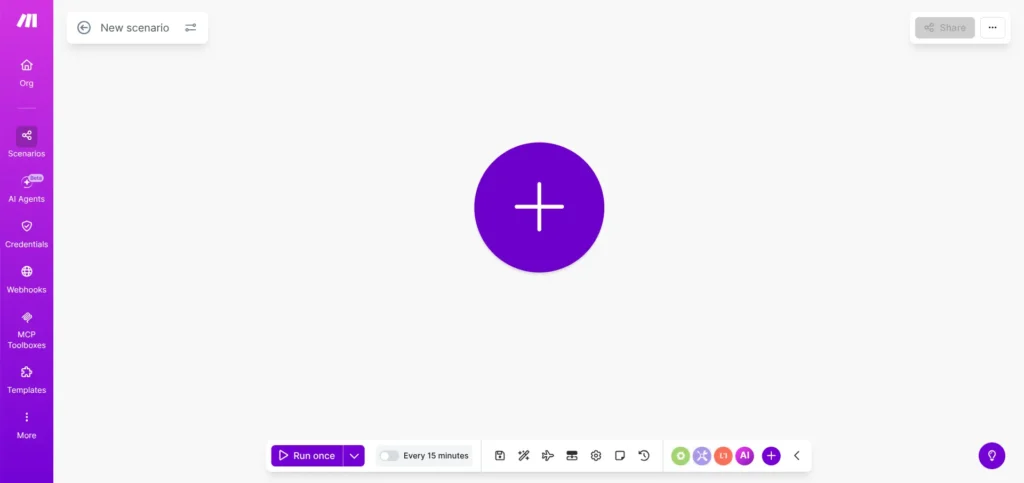
Why Most People Quit Before They Start
Make.com has thousands of templates.
Which sounds helpful. It is not, when you do not know what you are looking for.
The templates are searchable by app name or module type. If you know you want to connect Google Forms to Gmail, you can find it. If you just know you want to “stop doing this manually,” you are stuck.
Most beginners know roughly what they want. They do not know what it is called in Make.com language. So they search vague terms, get confused results, and give up.
That is the gap the Make Master fills. You describe the problem in plain English. It tells you what to actually search for and which modules to use.
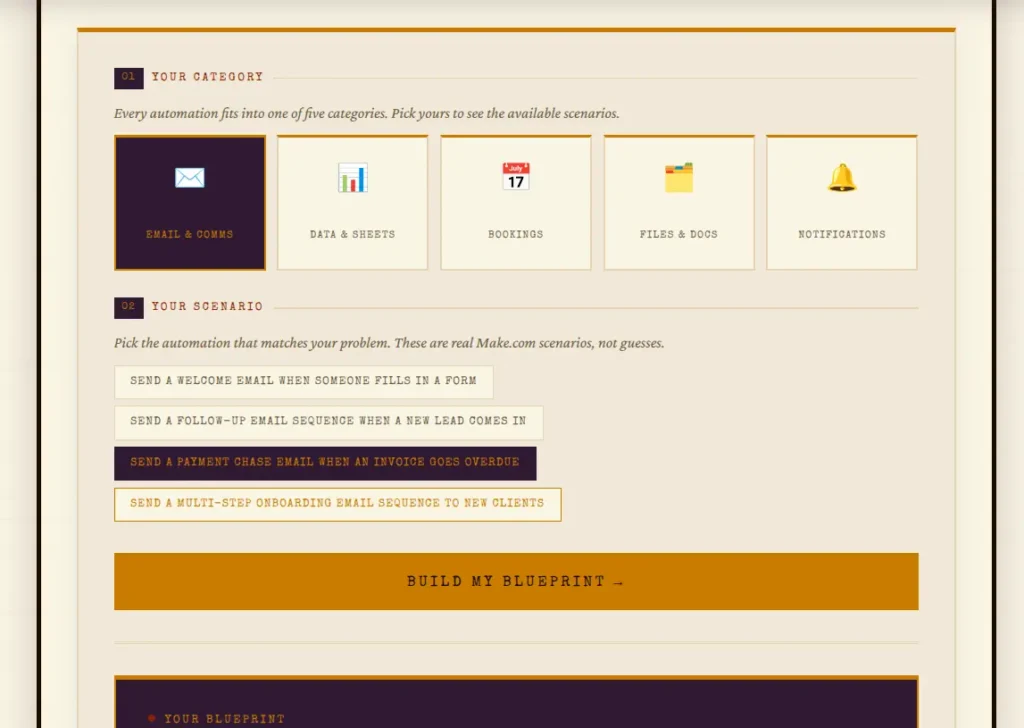
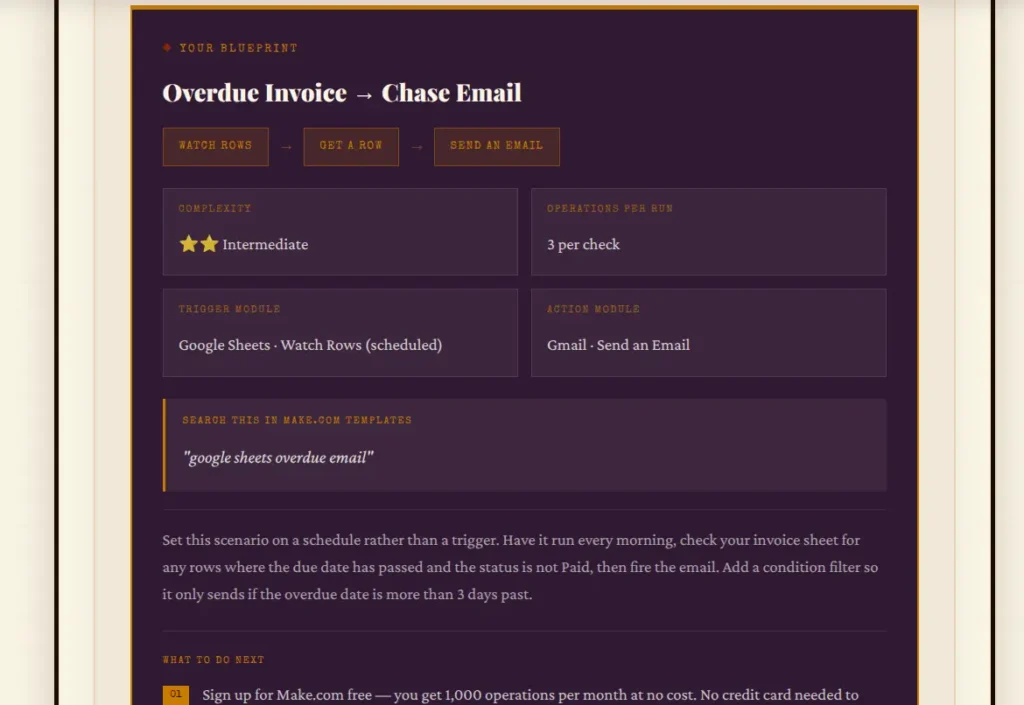
Pick your task. Get your blueprint. That is the whole thing.
The Five Types of Automation Worth Knowing About
Not every automation is the same. The Make Master groups them into five categories so you can find your scenario without scrolling through hundreds of templates.
Email and Comms
Automations that send messages triggered by something else happening. Welcome emails when someone fills in a form. Follow-up sequences after a new enquiry. Payment chasers, Onboarding emails. If it involves sending a message automatically. it lives here.
Data and Sheets
Automations that log information or update records. Form submissions going straight into a spreadsheet. Payment details captured automatically. Client records updated without anyone touching them manually.
Bookings
Automations triggered by calendar events or booking tools. Confirmation messages. 24-hour reminders. Follow-ups after an appointment. Anything that makes the booking process run without you babysitting it.
Files and Docs
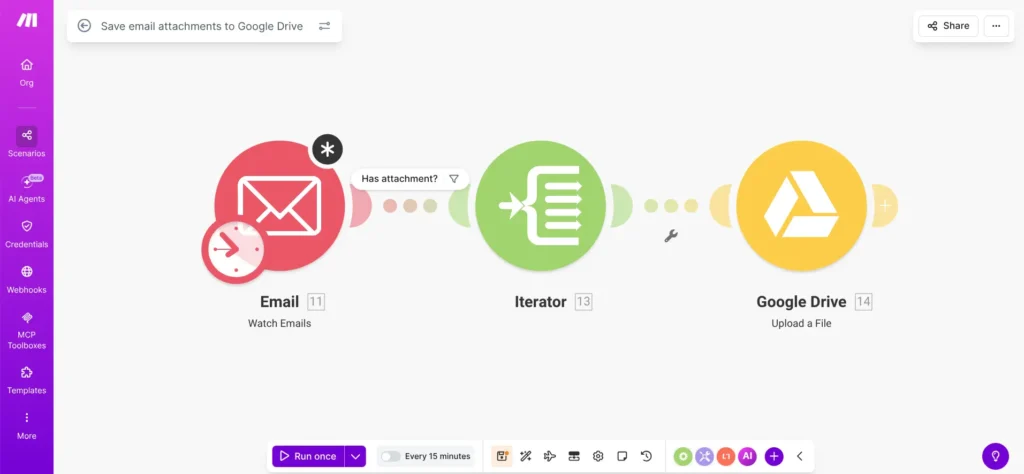
Automations that handle documents. Saving email attachments to a Drive folder automatically. Creating a new client folder when a job is confirmed. Converting a Google Doc to a PDF and sending it. The admin that eats ten minutes here and there, every day.
Notifications
Automations that tell you when something happens. New lead comes in. Payment received. Someone leaves a Google review. Instead of checking things manually or missing them entirely, you get notified when it matters.
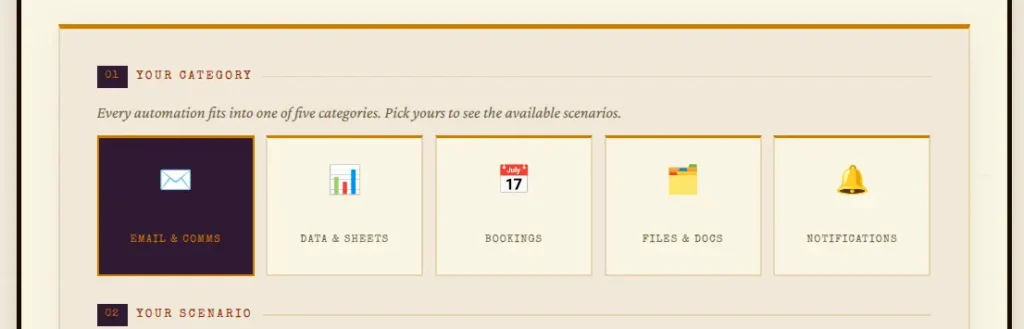
If your scenario is not in there, there is a suggestion box at the bottom of the tool. Tell us what you want to automate and it gets considered for the next update.
Your First Automation: Save Email Attachments to Google Drive
This is the best one to start with.
Not because it is the flashiest. Because it solves a problem every business has right now. Documents arriving by email, getting buried, and taking ten minutes to find when you need them later.
Once you have built this one, the logic behind every other automation clicks. You understand what a trigger is, what a module does, and how the pieces connect. Everything after that is a variation on the same idea.
Open the Make Master, pick Files and Docs, and find the email attachment to Drive scenario. You will get the exact modules and what to search for.
Then do this:
- Log into Make.com and click Templates in the left sidebar
- Search “email attachment” in the search bar
- Click “Save email attachments to Google Drive” — it has been used over 9,000 times so it is easy to find
- Click Use Template
- Connect your email account and Google Drive when prompted
- Send yourself a test email with an attachment
- Check your Drive to confirm the file landed
- Switch it on
That is it.
Every email attachment now saves to your Drive automatically. No more hunting through your inbox for that PDF someone sent three weeks ago.without you doing anything. You built an automation. It runs while you are doing something else.
A Note on the Operations Limit
The free plan gives you 1,000 operations per month.
Each module that runs counts as one operation. Two modules in a scenario means two operations per run. At that rate, 500 runs per month before you hit the limit.
For a small business just starting out, that is more than enough.
If you start building more complex automations with five or six modules, or you are running high volumes, you will eventually need a paid plan. At the point where automation is saving you real time, it is usually worth it.
For now, the free plan is the right place to start. Build it, test it, see if it works. Then worry about limits later.
Before you build anything
Write down one task you do manually every week that follows the same steps every time. Same trigger, same actions, same result. That is your first automation. If you cannot think of one, open the Make Master and browse the scenarios. You will recognise your week in there.
What the Make Master Does Not Do
Worth being straight about this.
The Make Master tells you what to build and how to find it. It does not build it for you. You still need to go into Make.com, connect your apps, and set it up.
For most simple automations that is genuinely not difficult. The template library does most of the heavy lifting and the Make Master tells you exactly what to search for.
For more complex builds, multi-step scenarios, custom logic, or anything connecting tools that do not have ready-made templates, it gets harder. That is where most people either spend a lot of time figuring it out or bring someone in to do it properly.
If you get to that point and decide you would rather hand it over, Spark Automations builds Make.com systems for small businesses. You describe the problem, we build the system, you get your time back.
But start with the Make Master. Get one automation running. See what it saves you. If you want to think about where automation fits into a broader AI working routine, this guide on building AI into your working dayis a good next read. Then decide what comes next.
Try It Now
Open the Make Master, pick a category that matches something you do manually every week, and see what comes back.
If you use AI for writing and drafting alongside Make.com for automation, the Prompt Machine helps with the prompting side of things. Different tool, same idea. You pick your task, it gives you the prompt.
Both free. Both take about a minute.

Yes. The free plan gives you 1,000 operations per month and access to most of the core features. No credit card required to sign up. It is enough to build and run several simple automations without paying anything.
No. Make.com is built for people who do not code. You connect apps visually, set your trigger, and tell it what to do next. The Make Master gives you the specific modules and search terms so you are not starting from zero.
Both connect apps and automate tasks. Make.com gives you more on the free plan and more flexibility for complex automations. Zapier is simpler to set up for very basic automations. For most small businesses starting out, Make.com is the better place to begin because the free plan goes further.
An operation is one module running once. If your automation has two steps, that is two operations per run. The free plan gives you 1,000 operations per month. A simple two-step automation running 500 times a month would use exactly that. Most small businesses starting out will not hit the limit.
Whatever you do manually every week that follows the same steps every time. Usually that is something like sending a confirmation email after a form submission, logging a payment to a spreadsheet, or getting notified when something happens. Open the Make Master and browse the scenarios. You will find it.
That is what Spark Automations does. You describe the problem, we scope the build, and hand it over working. The Discovery Audit is the starting point. You can find out more on the Spark Automations page.