
- ◆Chasing unpaid invoices manually is uncomfortable and easy to put off. Automating it means reminders go out on time whether you feel like sending them or not
- ◆This guide covers what a chasing sequence looks like, how to build one in Make.com, and what each message should say.
- ◆Works with most invoicing tools. No code required.

The invoice has been sitting there for twelve days. You did the work. And now you are staring at a blank email trying to work out how to ask for money without sounding like you are complaining.
So you soften it. Read it back. Soften it again. Send it apologetically. Wait. Nothing back. Do it again ten days later.
Late payment is a persistent problem for small businesses in the UK. According to the Federation of Small Businesses, around half of small businesses experience it regularly, with the average amount outstanding running into thousands at any given time.
Automating invoice chasing does not fix every late payment. What it does is make sure the reminders go out consistently, in the right tone, without you agonising over the wording each time.
For an overview of all five admin tasks worth automating, start with Part 1.
What You Will Learn
– What an automated invoice chasing sequence looks like
– How to build one in Make.com
– What each message should say
– What to do when someone pays — and when they do not
– The upstream benefit most people do not expect
What an Automated Invoice Chasing Sequence Looks Like
A chasing sequence is a set of timed emails triggered when an invoice passes its due date unpaid. You write the messages once, set the schedule, and it runs from there.
A basic four-reminder sequence covers most situations.
| Reminder | When it sends | Tone | Purpose |
|---|---|---|---|
| 1. First reminder | 7 days overdue | Friendly, assumes oversight | Prompt payment, easy to act on |
| 2. Follow-up | 14 days overdue | Firmer, references reminder 1 | Get a response or a payment date |
| 3. Final notice | 21 days overdue | Factual, no pressure language | State the situation, prompt action |
| 4. After automation | Your decision | Direct, personal | Phone call, formal letter, or write it off |
The sequence stops the moment payment is received. Setting that up correctly is the most important part of the build.

The Upstream Benefit Most People Do Not Expect
When chasing is automated, invoices tend to go out on time with clearer payment terms. Because you are not already dreading what comes next.
It is a small shift but a real one. The discomfort that causes people to delay sending invoices and soften due dates mostly disappears when they are not the one enforcing them.
How to Build It in Make.com
The trigger here is different to the lead follow-up in Part 2. Instead of a form submission, you are watching for an invoice to pass its due date without being marked as paid.
- An invoicing tool connected to Make.com — Xero, QuickBooks, FreeAgent, or similar
- A Make.com account — free to start
- Three draft messages written and ready to paste in
- Clear payment terms already on your invoices
If your invoicing tool is not in Make.com’s library, a Google Sheets workaround is covered in Step 1 below.
Step 1 — Set Your Trigger
In Make.com, search for your invoicing tool and select the trigger that fires when an invoice status changes or a due date passes. In Xero this is Watch Invoices. In QuickBooks it is Watch for New or Updated Invoices.
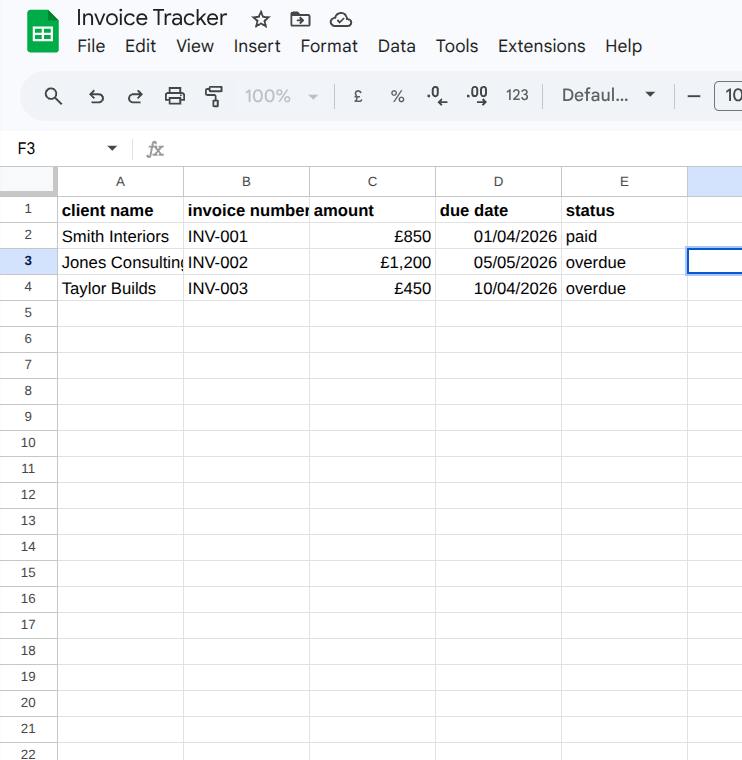
If your tool is not in the library, log due dates and payment status in a Google Sheet. Make.com watches the sheet and fires when a due date has passed without a paid status in the next column. Less neat but it works fine.
Still stuck? Ask an AI to walk you through it
If Make.com is throwing errors or a module is not behaving, paste the error message directly into Claude or ChatGPT and describe what you are trying to do. Something like: “I am trying to watch a Google Sheet for overdue invoices in Make.com and getting a 400 error. Walk me through fixing it.” Both have free plans and are good at troubleshooting Make.com errors step by step.
Step 2 — Add a Filter for Unpaid Invoices Only
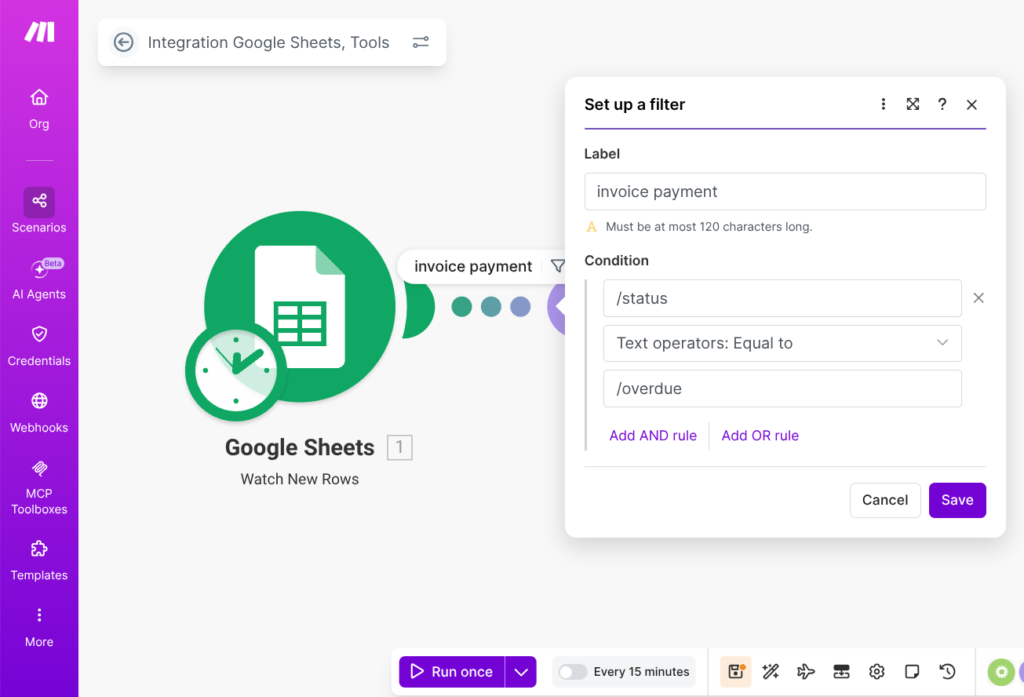
After the trigger, add a Filter module set to continue only when the invoice is unpaid and the due date has passed. Without this the scenario fires on every invoice update including paid ones.
Step 3 — First Reminder
Add an email module with your first message. Set it to fire when the invoice is seven or more days overdue.
“Hi [first name], just a quick note, invoice [number] for [amount] was due on [date]. If you have already sent payment, please ignore this. If not, you can pay here: [link]. Thanks.”
Step 4 — Payment Check Then Second Reminder
Add a seven-day Sleep module. Then add a filter checking the invoice is still unpaid. If it has been paid, the sequence ends. If not, the second message goes out.
This payment check between steps is the part most people skip. Without it, paid clients keep getting reminders. Always add it before each message.
“Hi [first name], following up on my previous message, invoice [number] for [amount] is now [X] days overdue. If there is an issue with payment please reply and we can talk it through. Otherwise, payment can be made here: [link].”
Step 5 — Payment Check Then Final Reminder
Another seven-day Sleep, another payment check, then the third message if still unpaid.
“Hi [first name], invoice [number] for [amount] remains unpaid, now [X] days overdue. I will need to follow this up further if payment is not received by [date]. You can pay here: [link], or reply to this email if you would like to discuss it.”
Check payment status before every message
A filter after every Sleep module that checks whether the invoice is still unpaid before the next reminder fires. Takes five minutes to set up and stops paid clients getting chasing emails.
Testing Before You Go Live
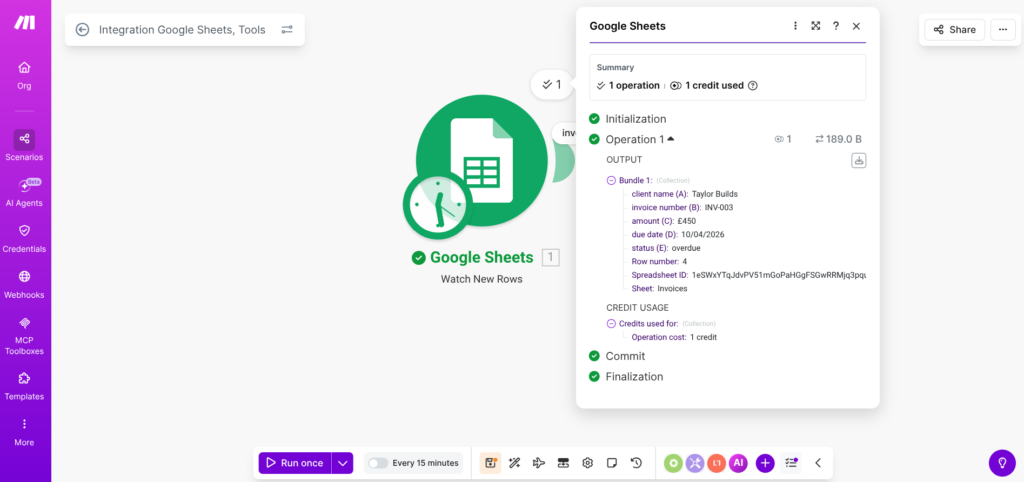
Create a test invoice in your invoicing tool marked as overdue. Run the scenario in Make.com using Run Once and watch each module fire. Check the filter catches unpaid correctly, the delays are right, and the sequence stops when you mark the invoice as paid mid-way through.
What Happens When Someone Pays
The sequence stops. Nothing else needed from the automation side. If it is a client you want to keep, a brief thank you by email or phone goes a long way. The automation handled the chasing. That part is yours.
If that client is now coming on board, the guide on automating client onboarding covers what to send them next and how to make that process consistent every time.
What Happens When They Do Not Pay
After the third reminder, the automation’s job is done. What comes next is a decision only you can make, follow up by phone, send a formal letter, or write it off.
Worth knowing: three consistent, documented reminders already in their inbox tends to make that conversation easier, whichever direction it goes.
A note on the final reminder
The third message says you will need to follow up further. Only send that if you are prepared to. If you are unsure what your options are, the government’s small claims guidance and Citizens Advice are reasonable starting points before committing to anything in writing.

- Invoicing tool connected and trigger tested
- Filter set to catch unpaid invoices only
- All three messages written, personalised, and proofread
- Payment status check added before every reminder
- Test run completed with a dummy overdue invoice
- Clear payment terms on your invoices before you switch it on
Not Sure Which Modules Fit Your Invoicing Tool?
The Make Master tells you the exact modules to use based on your setup. Free. About 60 seconds.
Try the Make Master → One page. No signup faff.Questions People Actually Ask
Set up a Make.com scenario triggered when an invoice passes its due date unpaid. Add three timed reminders at 7, 14, and 21 days with a payment status check before each one. The sequence stops when payment is received. The full build is covered above.
Three tends to be enough. After that it shifts from chasing to recovering, which usually means a phone call or formal letter rather than another email.
The first is friendly and short, assume it is an oversight. The second is firmer and references the first. The third is factual and states you will need to follow up further. Adapt the templates in this guide before using them.
Yes. Both connect to Make.com directly. If your invoicing tool is not in the library, the Google Sheets workaround covered in this guide handles it.
Add a payment status check after each Sleep module. If the invoice is paid the sequence ends there. Without this step, paid clients keep receiving reminders.
No. Most clients expect reminders for overdue invoices. The key is making sure the messages sound like you rather than a generic template.
That is outside the scope of automation. Options include a phone call, a formal letter, or a small claims court claim. The government’s small claims guidance is a reasonable starting point.
Your Clients Are Asking the Same Questions Every Week. Here’s How to Stop Answering Them.
Follow-up and invoicing sorted. The next drain on most small businesses is repeat customer questions, the same ones, every week, from every new client. This guide covers how to pre-answer them so they stop landing in your inbox.
Read Part 4 →