
- ◆Most repeat customer questions arrive because the client did not have the information before they needed it. Give it to them earlier and most of the questions stop.
- ◆This guide covers how to audit which questions to pre-answer, the three ways to handle them automatically, and how to build a triggered email sequence in Make.com.
- ◆No code. Works alongside whatever you already use for bookings or enquiries.
“What time is my appointment?” “What do I need to bring?” “Have you received my form?”
You know exactly which questions are coming because they come every week. Same questions. Different person typing them.
Clients ask because they do not have the information yet. The fix is sending it before they need to ask.
If you want an overview of all five admin tasks worth automating first, start with Part 1 of this series.
What You Will Learn
– How to work out which questions to pre-answer
– Three ways to handle repeat questions automatically
– How to build a triggered email sequence in Make.com
– What the emails should actually say
– How this connects to onboarding
Work Out Which Questions to Pre-Answer
Open your inbox. Look at the last month. Write down every question a client asked that you have answered before.
Most small businesses end up with the same five to eight questions. Usually something about timing, something about what to bring, something about process, something about what happens next.
- Timing — “What time is my appointment?” “When will I hear back?”
- Preparation — “What do I need to bring?” “What should I prepare?”
- Process — “What happens after I submit?” “How does this work?”
- Progress — “Have you received my form?” “Where are we up to?”
- Practical — “Where do I park?” “Is there a call link?” “How do I pay?”

Three Ways to Handle Repeat Questions Automatically
There are three approaches. Which one you use depends on the question and where it sits in the client journey.
| Approach | Best for | How it works |
|---|---|---|
| Triggered email sequence | Questions that come up at predictable points, after booking, before a session, after payment | Make.com sends pre-written emails automatically when a trigger fires |
| FAQ page | Questions clients ask before they have committed, pricing, process, what to expect | A well-structured page linked from confirmation emails and your website |
| AI-assisted drafting | One-off or unusual questions that do not fit a template | Paste the question into ChatGPT or Claude with a clear brief, get a draft, edit and send |
The triggered email sequence is the one worth focusing on. Most small businesses have a booking confirmation that says “you’re booked in, see you then” and nothing else. Adding one more email that pre-answers the top five questions your clients ask removes most of the inbox follow-up. It arrives before the question forms.
How to Build a Triggered Question Email in Make.com
The trigger is usually a booking confirmed, a form submitted, or a payment received. Something that marks a client as active and ready to receive information.
- A trigger source – booking tool, payment platform, or form connected to Make.com
- A Make.com account – free to start
- Your top five repeat questions written out with answers
- A decision on timing – immediately after booking, or the day before the appointment
Write the answers first. The build takes about twenty minutes once the content is ready.
Step 1 — Set Your Trigger
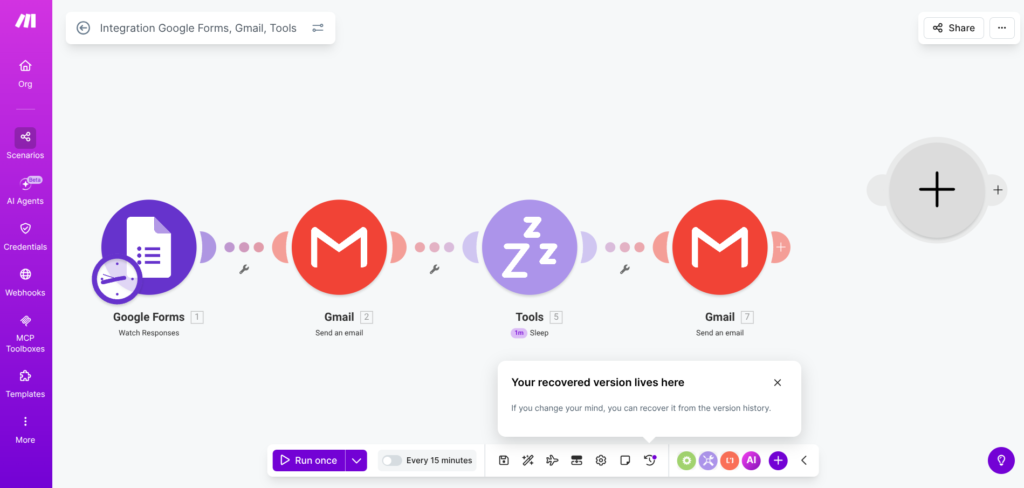
In Make.com, connect your booking tool, form, or payment platform and select the trigger that fires when a new booking or submission comes in. Search for your tool in the Make.com module library and select the event that matches, usually something like “watch new bookings” or “watch form submissions.”
Still stuck? Ask an AI to walk you through it
If a module is throwing validation errors or not connecting, paste the error message into Claude or ChatGPT and describe exactly what you are trying to build. Something like: “I am trying to send an automated email in Make.com using Gmail after a Google Forms submission and getting a validation error. Walk me through fixing it.” Both have free plans and are good at Make.com troubleshooting step by step.
Step 2 — Add an Immediate Confirmation Email
Right after the trigger, send a confirmation email. Keep it short. Confirm the booking, the time, the location or call link. This is not the FAQ email, it is the practical one that covers the basics.
“Hi [first name], your booking is confirmed for [date] at [time]. [Location or call link.] If anything changes at your end, reply to this and let me know. See you then.”
Step 3 — Add a Second Email With the Pre-Answers
Add a Sleep module. Set the timing based on when questions tend to arrive — usually 24 to 48 hours after booking, or the morning before the appointment. Then add a second email covering your top repeat questions directly.
Do not frame it as a FAQ list. Frame it as helpful information. “A few things worth knowing before we speak” tends to land better than “frequently asked questions.”
“Hi [first name], a few things worth knowing before [date].
[Answer to question 1.]
[Answer to question 2.]
[Answer to question 3.]
[Answer to question 4.]
[Answer to question 5.]
Anything else, just reply to this. See you [day].”
Send it the day before, not the day of
The pre-answer email lands best the evening before or morning of the appointment, close enough to be useful, early enough to read. Sending it immediately after booking means it gets buried. Set the Sleep module accordingly.
The FAQ Page
A FAQ page linked from every confirmation email handles questions before someone books. Pricing. Process. What to expect.
Most small business FAQ pages exist but never get linked anywhere useful. One line in the confirmation email fixes that: “If you have questions in the meantime, most of the common ones are answered here: [link].”

How This Connects to Onboarding
The pre-answer content you write for this sequence tends to be the same content that belongs in a client onboarding sequence. Write it once and it works in both places.
The full onboarding build is covered in Part 5: What Happens After Someone Says Yes?
- Repeat questions identified from your inbox
- Answers written clearly and in your own tone
- Trigger connected and tested
- Confirmation email written and tested
- Pre-answer email written, timed correctly, and tested
- FAQ page updated and linked from confirmation email
Not Sure Where to Start in Make.com?
The Make Master picks the right modules for your setup. Tell it what you want to automate and it gives you exactly what to search for. Free. Takes about a minute.
Try the Make Master → One page. No signup faff.Questions People Actually Ask
Build a triggered email sequence in Make.com. Confirmation email fires immediately after booking. Pre-answer email covering your top five repeat questions goes out the day before. Most inbox questions stop arriving.
No. A triggered email sequence handles most repeat questions better. Chatbots suit high-volume real-time support. A pre-answer email works better when the questions are predictable.
Open your inbox and look at the last month. Any question you have answered three or more times belongs in an automated email.
Not if the emails sound like you. Write the content in your own voice and clients will read it as a helpful note, not a system message.
Make.com plus whatever you already use for bookings or forms as the trigger. The free Make.com plan covers most small business volumes.
An FAQ page handles questions before someone commits. A triggered email sequence handles questions after they book. The triggered sequence tends to have the bigger effect on inbox volume.
Answer it, then add it to your pre-answer email. The sequence gets better over time.
What Happens After Someone Says Yes? (Most Businesses Wing It)
Follow-up, invoicing, and repeat questions all sorted. The final piece is what happens the moment a client commits. Most small businesses do it from memory, in a different order each time. This guide covers how to build an onboarding sequence that runs itself.
Read Part 5 →