
- ◆Fill in one spreadsheet row. Get a branded Instagram carousel posted automatically.
- ◆This guide builds the automation once. Make.com watches the spreadsheet. Bannerbear creates the branded image. Claude writes the copy. It posts to Instagram without you touching it.
- ◆No code. Half a day to set up. Runs itself after that.

Most estate agents know they should be posting new listings to Instagram. Most of them are not doing it consistently. Not because they do not want to. Because it takes too long and keeps sliding down the list.
This guide covers estate agents Instagram automation from start to finish. One spreadsheet row. A branded carousel posted automatically.
You fill in one row in a Google Sheet with your listing details. Within a couple of minutes, a branded five-slide Instagram carousel is live on your agency feed. Copy written by AI. Images generated automatically. Posted without anyone going near Instagram.
No code. No design software. No scheduling app. Setup takes roughly half a day the first time. After that it runs on its own.
What You Will Learn
– What the automation does and what you need before you start
– How to set up your Google Sheet, Bannerbear templates, and Make.com scenario
– The Claude prompt that writes the carousel copy
– What breaks most often and how to fix it
– What this saves you in time per listing
Why Estate Agents Should Automate Instagram
Done manually, one Instagram carousel for a new listing takes most agents somewhere between half an hour and an hour, depending on the listing and how much copy you write from scratch. Writing the copy. Resizing the images. Building the slides. Scheduling or posting it.
Ten listings a month. That is several hours of work that produces something almost identical every time.
If you are thinking about which admin tasks to tackle first, this guide on the five admin jobs worth automating gives you a useful starting framework.
Once this automation is running, it is two minutes of data entry per listing. The copy is consistent because it comes from the same prompt. The design is consistent because it comes from the same Bannerbear templates. And it happens whether you remember to do it or not.
The same pipeline adapts to price reductions, just sold posts, and landlord-focused content. You swap the prompt and adjust the slides. The Make.com structure stays the same.
If you are new to Make.com, the Make Master tool walks you through your first automation before you tackle anything this involved. Worth ten minutes before you start. And if you want to get more out of the Claude prompt in this guide, the prompt writing guide covers the five-part formula that makes AI copy noticeably better.
What each tool does
Make.com — the automation platform connecting all the pieces. Free to start. You build the workflow visually, no code needed.
Bannerbear — turns text into branded images using your templates. Free trial, then around $49 per month.
Claude API — the AI that writes the carousel copy. A fraction of a penny per listing.
Instagram for Business — your agency Instagram account, connected via a Facebook Page. Required for any automated posting. A personal account will not work.
Social media automation is not a new idea. Research suggests the majority of marketing teams now automate their posting, with consistent scheduling linked to meaningful improvements in engagement.
What the Automation Does
One new row in your Google Sheet triggers Make.com. It sends the listing details to Claude, which writes five carousel slides and a caption. Make.com passes each slide’s text to Bannerbear, which generates a branded image for each one. Once all five images are ready, Make.com posts them to Instagram as a single carousel.
The whole thing runs in the background. For most listings, it is done before you have closed the spreadsheet tab.
| Step | What happens | Tool |
|---|---|---|
| 1 | New row added to Google Sheet | Google Sheets |
| 2 | Listing details sent to AI, carousel copy written | Claude API |
| 3 | Copy sent to each slide template, images generated | Bannerbear |
| 4 | Five image URLs bundled into a single array | Make.com |
| 5 | Carousel posted to Instagram with AI-written caption | Instagram for Business |
Before You Start: Four Blockers to Check
Each of these will stop the build in its tracks if it is missing. Check all four before opening Make.com.
Instagram Business account
A personal account will not connect to Make.com. Go to Instagram settings, tap Account, then Switch to Professional Account. You keep your existing posts and followers. Here is the help page if you’re struggling – Instagram Help Page
Instagram linked to a Facebook Page
Not a personal profile. A Business Page. Make.com connects to Instagram via Meta’s API and this link is required. Go to Account Centre in Instagram settings and connect your account to your agency’s Facebook Page.
Publicly accessible photo URLs
Instagram fetches images directly from a web address when posting via the API. The link must open the image in a browser without requiring a login. Rightmove and Zoopla photo links typically work. Google Drive links do not. Meta stopped accepting them.
Test any URL by opening it in a private browser window before using it. If the image loads directly, it will work.
Make.com and Bannerbear accounts
Both have free trials. Have both set up before starting the scenario build.
Test with a dummy listing first
Do not run this on a live property until you have tested it with made-up details. Create a dummy row in your sheet, run the scenario manually, and confirm the carousel posts correctly before switching on the automatic trigger.
Do not run this on a live property until you have tested it with made-up details. Create a dummy row in your sheet, run the scenario manually, and confirm the carousel posts correctly before switching on the automatic trigger.
Step One: Set Up Your Google Sheet
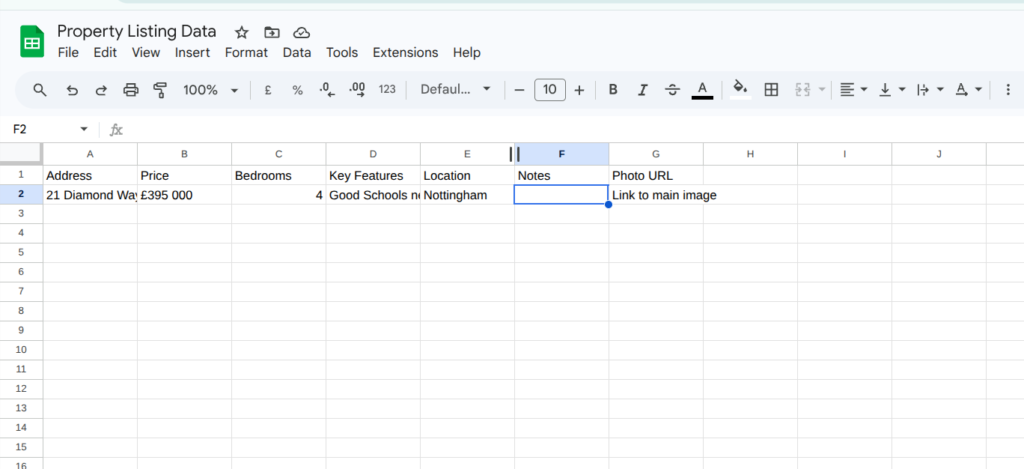
Create a new Google Sheet with these column headers in row one:
Address Price Bedrooms Key Features Location Notes Photo URL
Key Features is one column. Write three or four selling points separated by commas: south-facing garden, converted loft, close to Ofsted Outstanding primary. The more specific this column is, the better the copy Claude produces.
Photo URL should be the direct link to the listing’s main photograph. Paste it into a private browser window first. If the image loads without any redirect or login prompt, it will work.
Step Two: Build Your Bannerbear Templates
Do this before opening Make.com. Build the templates once, connect them, and they stay in place.
Log into Bannerbear and create a Template Set. Set every template to 1080 x 1350 pixels (4:5 portrait). Build five templates, one per carousel slide. Use Bannerbear’s placeholder system for the text: {{headline}} on slide one, {{features}} on slide two, and so on. Bannerbear swaps these out for real copy when Make.com sends it through.
Apply your agency branding – colours, logo, fonts. Before connecting anything. Changing it later means updating all five templates.
Test one template manually inside Bannerbear before moving on. Send it dummy text and confirm the image renders correctly. Five minutes here saves a lot of troubleshooting later.

Step Three: Build the Make.com Scenario
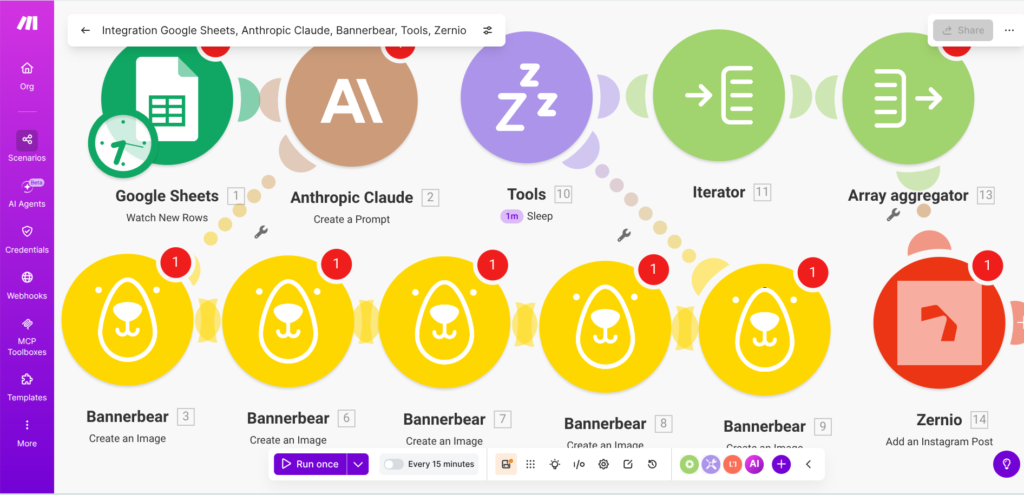
Create a new scenario in Make.com. Connect the modules in this order.
Module 1 — Google Sheets: Watch New Rows
Set this to watch your listings sheet and check for new rows. Every 15 minutes is a reasonable starting point. A new row fires everything that follows.
Module 2 — Anthropic Claude: Create a Message
Get a Claude API key from console.anthropic.com. This is separate from a regular Claude.ai account. Sign up at console.anthropic.com, create a new project, and it gives you a key to copy. In Make.com, connect it to the Anthropic module and select Claude Sonnet as the model. The {{double brackets}} values in the prompt below pull in your sheet data automatically.
You are writing Instagram carousel copy for a property listing.
Property details:
Address: {{address}}
Price: {{price}}
Bedrooms: {{bedrooms}}
Key features: {{features}}
Write five carousel slides and one caption.
Slide 1: A punchy opening line about the property. One sentence.
Slide 2: The headline feature. One or two sentences.
Slide 3: Second key selling point. One or two sentences.
Slide 4: Location or lifestyle benefit. One or two sentences.
Slide 5: Call to action. One sentence. No clichés like “do not miss out.”
Caption: Two to three sentences summarising the listing. End with a call to action to book a viewing. No hashtags.
Keep the tone warm and professional. No exclamation marks. No estate agent clichés like stunning, immaculate, or must be seen to be believed.
There is ongoing debate in the industry about AI-written property copy. The carousel format helps because the copy is short, structured, and easy to review before it posts. You are not handing the keys over, you are getting a first draft in seconds.
Module 3 — Bannerbear: Create an Image (x5)
Add five Bannerbear modules, one per slide. Each sends the relevant Claude output to the matching Bannerbear template. Bannerbear generates the image and returns a public URL for each one.
After the fifth Bannerbear module, add a Sleep module set to 15 seconds. Bannerbear renders images asynchronously. Make.com moves fast enough that it can try to collect the image URL before the image is ready. The sleep step prevents that.
Bannerbear URLs must stay public
Bannerbear image URLs need to be fully public for Instagram to fetch them. Bannerbear generates public URLs by default. Do not change the privacy settings on your templates or the posting step will fail.
Module 4 — Iterator and Array Aggregator
Instagram’s carousel module expects a single array of image URLs, not five separate values. Without this step, Make.com posts five individual images rather than one carousel.
An Iterator breaks your five Bannerbear URLs into individual items. An Array Aggregator bundles them back into a single array. Set the Aggregator to collect all five URLs before passing them on.
It feels like an unnecessary loop. Skip it and you will spend an hour wondering why the carousel is posting as five separate images.

Module 5 — Instagram for Business: Create a Carousel Post
Map the aggregated image array to the Files field. Map Claude’s caption to the Caption field. Set the media type to IMAGE for every item in the array.
Run the scenario manually with your dummy listing before switching on the schedule. Check the images render, the copy reads well, and the post appears as a single carousel rather than five separate posts.
When It Goes Wrong
Most issues fall into one of four categories.
Scenario works manually but fails on a schedule
Usually a connection token issue. Go to Make.com connections, find Instagram for Business, and reconnect it. Accept all permissions when Facebook asks.
Error: “Only photo or video can be accepted as media type”
Instagram cannot access one of the image URLs. Paste each Bannerbear URL into a browser and check it loads correctly. If any fail, increase the Sleep module to 20 seconds.
Images post individually instead of as a carousel
The Iterator and Aggregator are not configured correctly. Check the Aggregator is collecting all five URL fields and outputting a single array before the Instagram module.
Bannerbear URL comes back empty
The Sleep module is too short or missing entirely. Increase it to 20 seconds.
Save the scenario blueprint
Once everything is working, export the scenario from Make.com (Settings, then Export Blueprint). Save the file. If you ever need to rebuild or set this up for another branch, you have a working starting point rather than starting from scratch.
What This Gets You
A branded carousel for one listing, written, designed, and posted. Takes somewhere between half an hour and an hour done manually, depending on the listing. Across ten listings a month, that is several hours of the same task done slightly differently each time.
Once this is running, it is two minutes of data entry. The copy is consistent. The design is consistent. And it goes out whether you remembered or not.
The same principle applies to property descriptions. If writing them from scratch is eating time, the guide to AI property descriptions for estate agents covers how to get a solid first draft in under a minute.

Want AI to Help With Your Property Images?
The Image Specialist tool helps you write better prompts for AI image generation. Get more consistent, professional-looking visuals for your listings and social posts.
Try the Image Specialist → One page. No signup faff.Questions People Actually Ask
It turns a row of listing data in a Google Sheet into a branded five-slide Instagram carousel and posts it automatically. You fill in the details. Make.com, Bannerbear, and Claude handle the copy, the images, and the posting.
No. Every step uses Make.com’s visual interface. You connect modules by clicking. The only thing you type is the Claude prompt, which is provided in full in this guide.
An Instagram Business account linked to a Facebook Business Page, a Make.com account (free to start), a Bannerbear account (free trial), and a Claude API key from console.anthropic.com. The API costs fractions of a penny per listing.
Roughly half a day the first time, including building the Bannerbear templates and testing the full scenario. Once it is working, maintenance is minimal.
The Instagram connection dropping (fix: reconnect it in Make.com), image URLs not loading (fix: check they are publicly accessible and increase the Sleep module to 20 seconds), and images posting individually instead of as a carousel (fix: check the Iterator and Aggregator are configured correctly).
Generally yes, because they are publicly accessible. Test any URL in a private browser window first. If the image loads directly without a redirect or login, it will work. Google Drive links do not work.
Make.com’s free tier includes 1,000 operations per month. This scenario uses around 12 to 15 operations per listing. At ten listings a month you are inside the free limit. Bannerbear costs around $49 per month after the trial. Claude API usage for this prompt is negligible.
Yes. The same pipeline works for price reductions, just sold posts, and letting agent landlord content. Adapt the Claude prompt and adjust the Bannerbear templates. The Make.com structure stays the same.
How to Reply to Rightmove and Zoopla Enquiries Faster With AI
Property descriptions sorted. The next time drain is portal enquiries. The same reply, forty times a week, one at a time. This guide covers how to build a prompt template that handles most of them in under two minutes.
Read Part 2 →